Merge Configuration
Warning
This is an experimental feature. A backup of the current file must be created first. Feedback is highly welcome! Please report any issues or suggestions through the Bug Report feature or contact messages.
The merge configuration feature enables users to synchronize two configuration files or merge parts of a configuration into an existing project or configuration. This is particularly useful when you want to integrate updates from a shared configuration or combine elements from different configurations.
To begin the merge process, a second configuration must be loaded. This can be done via Configuration > Merge.
- Click on Select file to load the configuration that will be merged into the current project or configuration.
- The configuration will be loaded and analyzed for differences.
As a result, a list of merge requests is shown for each concept such as "Requirement Type", "Risk Metric", or "Asset". The first icon indicates the change (added, updated, deleted). The merge request has a name, usually the name of the affected item. The name is followed by two numbers in parentheses. The second number states the number of merge requests part of this change and the first one the requests currently selected for merge execution. Once a merge request is opened, it can be selected which request should be executed.
Change Tree View
Clicking on any merge request opens a detailed tree view that displays all changes that will be made for that concept. The tree structure shows:
- Top-level items: The main entity being added, modified, or deleted
- Property details: Properties of the main entity that are affected
- Nested dependencies: Related items that will be affected by the change
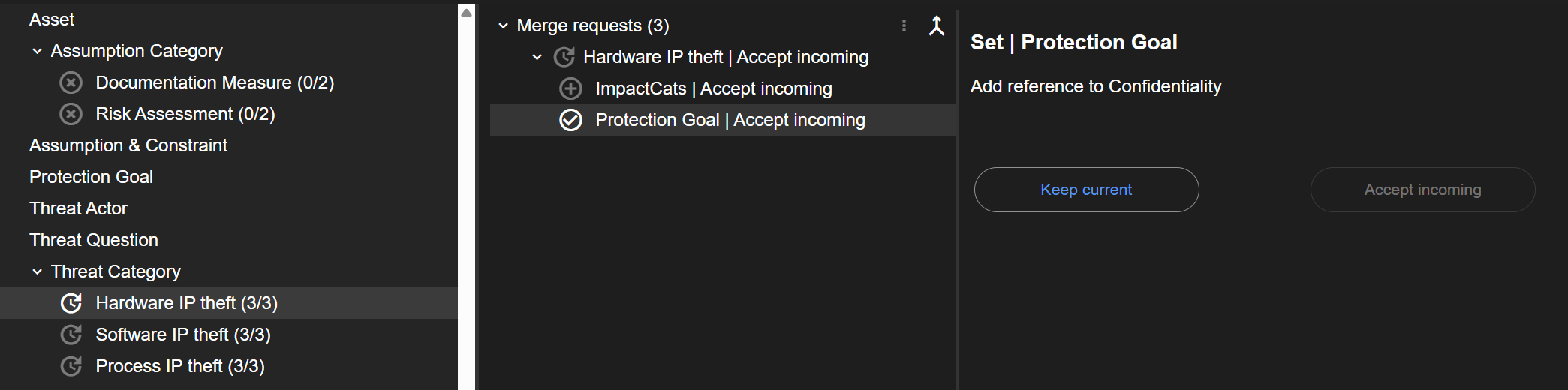
Because configuration items often have dependencies on other items, the list of changes can be long and deeply nested. For example:
- Merging a new risk assessment method might require adding risk metrics and metric values
- Importing a risk metric could necessitate updates to risk assessment formulas
- Adding a asset might require to add a protection goal
The tree view helps you understand the full scope of changes before accepting them, ensuring that all dependencies are properly resolved.
Accept or Keep Decision
For each merge request, you must decide how to handle the differences:
Accept Incoming
Applies the changes from the loaded configuration file. This will:
- Add new items that don't exist in the current configuration
- Update existing items with values from the incoming configuration
- Potentially remove items that are marked for deletion in the incoming configuration
Keep Current
Maintains the existing configuration values. This will:
- Ignore changes from the incoming configuration for this concept
- Preserve all current settings and definitions
- Leave the current state unchanged
Merge requests with the "Keep current" decision are shown in red in the tree view.
Default Behavior
The system provides intelligent defaults based on modification metadata:
- Default selection: "Accept incoming" is the default option for most merge requests, assuming users want to apply updates
- Smart pre-selection: If the current configuration has been modified more recently than the incoming configuration, "Keep current" may be preselected based on the last changed time or user information
- Special cases: In case of a project configuration, some project-specific items for components, protocols, or assumption categories might be added. As these items are project-specific, "Keep current" is preselected.
You can review each pre-selection and change it as needed before applying the merge.
Applying the Merge
After reviewing all merge requests and setting your preferences:
- Open the root entry "Merge requests" in the tree view
- Click Merge to execute the selected changes
- The system will process each accepted merge request in order
- The list of all merge requests is updated
In case some merge requests were executed, but were not successful, they are marked as "Merge difference".
Note
Multiple Iterations: Complex merges may require several iterations to fully resolve all differences. However, after a few iterations the merge should be completed - otherwise there is a technical issue.
It is also possible to apply all merge requests at once. For this, open the root node of the merge request tree (the one including the configuration name). This applies all request iteratively. The execution can be stopped. If you want to fully synchronize two configurations, there is a button for checking equality.
Best Practices
- Review carefully: Always examine the tree view to understand the full impact of each merge request before accepting it
- Test in a copy: For critical configurations, consider testing the merge on a copy of your project first
- Save frequently: Create a backup or save your current state before performing a merge operation
- Document changes: Keep notes on what was merged and why, especially for team configurations
- Iterate as needed: It is expected to perform multiple merge steps to fully integrate complex configuration updates
Tip
It is possible to set the decision ("Keep current" or "Accept incoming") or execute a merge request via context menu.
Providing Feedback
As this is an experimental feature, your feedback is invaluable for improving the merge functionality. Please share:
- Issues encountered during the merge process
- Unexpected behavior or results
- Suggestions for improving the user interface
- Ideas for additional merge options or controls
Submit feedback through Help > Bug Report or use the contact message form.