Getting Started
This page summarizes the first steps for installation and configuration of TTModeler Pro.
Warning
Prior to starting the installation and use, we recommend that you familiarize yourself with the Security page.
Installation & Usage
The tool TTModeler Pro is distributed both as web and desktop application. There are only some differences between both options. There are a few benefits for each:
➕ Desktop Application
- Easier file handling of local files, as the tool has access to the filesystem
- Possibility to create Workspaces
- Associated file extension, if setup is used
- Possibly performance improvements
➕ Web Application
- No download/installation required
Tip
You don't have to choose one of the two variants - you can use both options at the same time.
Desktop Application
The desktop application can be downloaded here or via Debian package repository (see below).
The app is available for the following platforms and variants:
- Windows standalone executable (.exe)
- Windows setup for installation under local AppData (no admin privileges needed)
- Linux standalone executable (.AppImage)
- Linux Debian package (.deb)
Tip
Both Windows setup and Linux Debian package support automatic updates.
A free hard disk space of 500 MB is sufficient for the installation. At least 2 GB of RAM should be available when running the software.
Note
After downloading the app, verify the integrity and authenticity of the file.
Debian Package Repository
There is a custom Debian-compatible APT repository to receive automatic updates.
The custom repository can be added via the following commands:
sudo install -m 0755 -d /usr/share/keyrings
curl -fsSL https://emgarde.de/releases/debian/public.key | sudo gpg --dearmor --yes -o /usr/share/keyrings/ttmodeler.gpg
echo "deb [signed-by=/usr/share/keyrings/ttmodeler.gpg] https://emgarde.de/releases/repo stable non-free" | sudo tee /etc/apt/sources.list.d/ttmodeler.list > /dev/null
sudo rm -rf /var/lib/apt/lists/*
sudo apt update
The package can be installed via apt install ttmodeler-pro and updated via apt update and apt upgrade.
File Association
It is possible to associate TTModeler projects (.ttmp) and configurations (.ttmc) with the tool. For Windows, the provided setup can be used setting everything up.
For Linux, edit the file /user/share/applications/ttmodeler-pro.desktop and add the following line at the end:
MimeType=application/x-ttmp;application/x-ttmc;x-scheme-handler/ttmodeler;
Furthermore, create the file ttmodeler-pro-mime.xml in /usr/share/mime/packages/ with the following content:
<?xml version="1.0" encoding="UTF-8"?>
<mime-info xmlns="http://www.freedesktop.org/standards/shared-mime-info">
    <mime-type type="application/x-ttmp">
        <comment>TTModeler Project</comment>
        <glob pattern="*.ttmp"/>
    </mime-type>
    <mime-type type="application/x-ttmc">
        <comment>TTModeler Configuration</comment>
        <glob pattern="*.ttmc"/>
    </mime-type>
</mime-info>
Afterwards, update the databases:
sudo update-mime-database
sudo update-desktop-database
Web Application
The web application is here available.
Network Connectivity
The tool does not require any inbound ports or special firewall rules. All communication is initiated outbound and uses HTTPS (TCP 443) exclusively.
The tool only connects to the backend services hosted under emgarde.de, and no additional endpoints or protocols are involved.
Licensing
Adding a License Key
The tool opens automatically a dialog and ask you for a license key as soon as you perform an action that requires a valid license. If there is already a valid license key, new ones can still be added (see Managing License Keys).
Managing License Keys
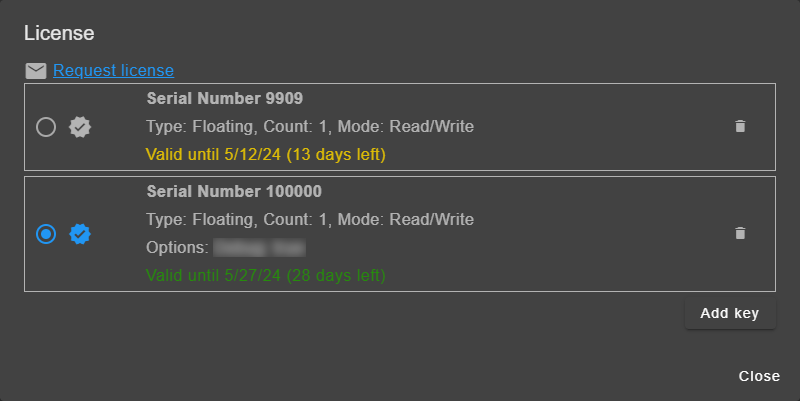
Licenses can be managed via the "License" dialog, accessible via the account menu.
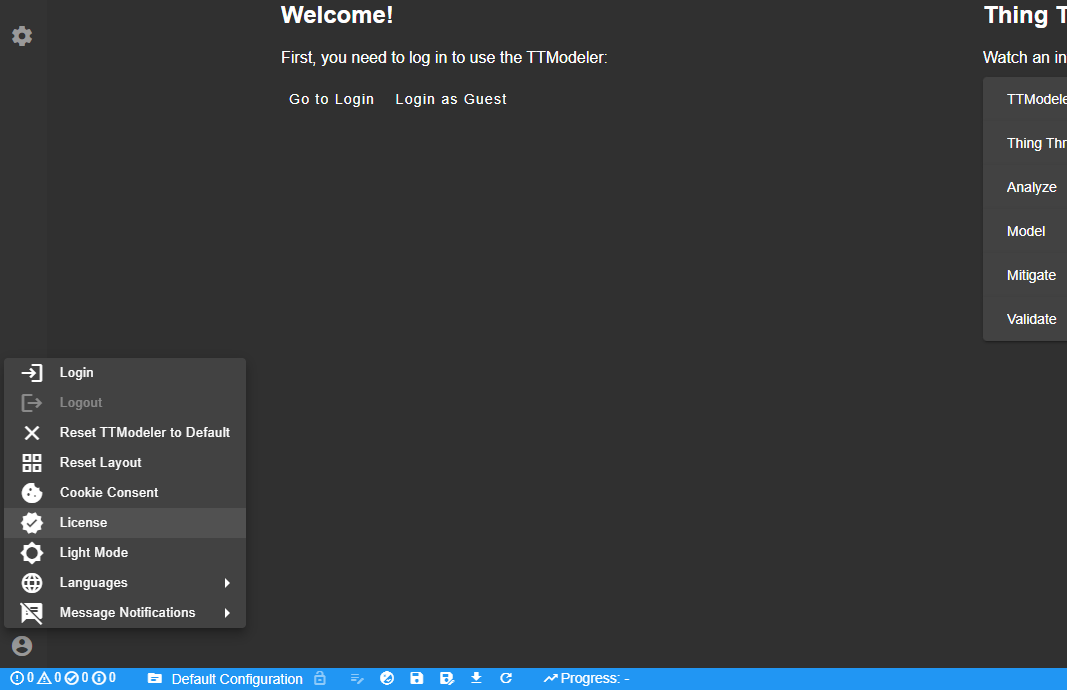
Additional licenses can be added or removed in the dialog. The currently used license is selected via the radio button.
Using a Git-based System
TTModeler Pro supports local and remote Git-based workflows.
The main advantages of using Git are:
- Every save creates a commit
- Changes are trackable in the commit history
- Baselines can be created to mark specific states/versions
- The history can be displayed in the tool and previous versions can be loaded
Workspaces
Workspaces are local folders initialized with Git; the initialization is automatically performed while adding a workspace. Git must be installed on your system. For git installation instructions, see git-sc.com.
They are useful for working locally while still benefiting from full version history and baselines.
Remote Git-based Systems
Remote Git-based systems are intended for collaboration and use checkouts so multiple users can work in parallel.
Issue tracking is also supported in selected systems by linking objects (e.g., countermeasures, attack scenarios) to issues and keeping them synchronized (currently only Azure DevOps Work Items are supported).
Setting up a remote Git-based system can be done via Account > Login.
Currently, GitLab, GitHub, and Azure DevOps are supported. Instructions on how to log in can be found on the login page. For GitHub, a video is available on YouTube.
For further information, see Working with a Git-based System.
Known Limitations
The REST API of the Git system may define a maximum request size for pushes. Therefore, if the project reaches a certain size, saving may not be possible anymore.
For the web app, there is currently no solution. It can be implemented on request.
For the desktop app, Workspaces can be used:
- Instead of using the login functionality of the tool, clone the remote repository via git clone to your hard drive.
- Add the cloned folder as workspace via File > Add Workspace.
- Enable remote pushes via File > Workspaces > [Folder] > Push changes to remote.
Further Help
Video Tutorials
A series of short video tutorials is available on YouTube explaining the first steps.
Glossary
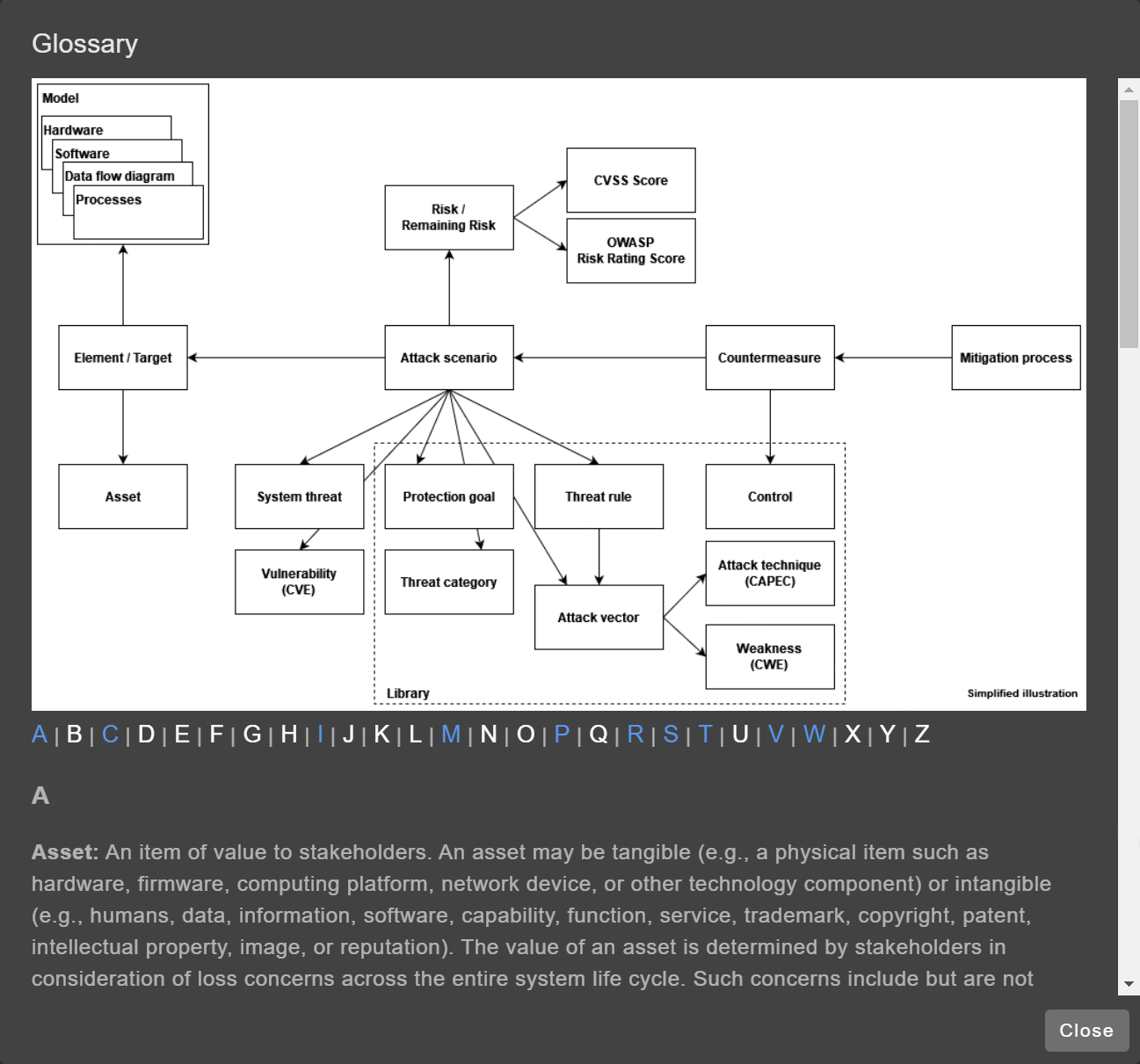
The tool has a built-in glossary explaining the used terms and their relation in the tool.
The glossary can be accessed in the tool via Help > Glossary.
Keyboard Shortcuts
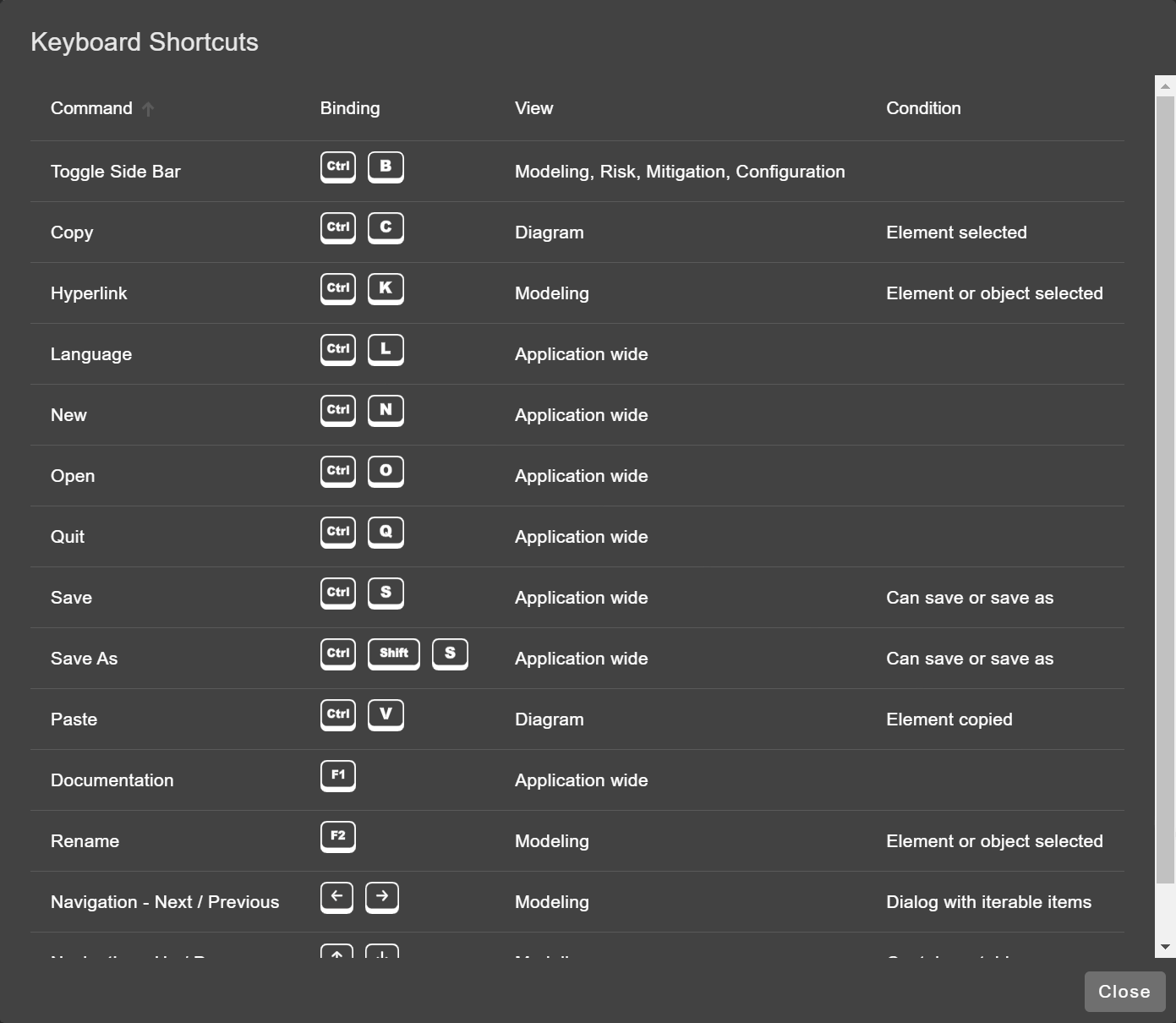
The tool supports multiple keyboard shortcuts. An overview of all shortcuts is provided in the tool via Help > Keyboard Shortcuts.
The View column describes in which page the command is available. If there are certain requirements/conditions that must be fulfilled, these are listed in the Condition column.